
An IP address gets data to the right device, but a single device runs many services at once — web browsing, email, file sharing, games. Ports are what keep all that traffic sorted. And port forwarding is how you let the outside world reach a service running at home.
What is a port?
If an IP address is a building, a port is a numbered door. Each network service listens on its own port number, so incoming data knows exactly which door to knock on.
Port numbers range from 0 to 65535. Some are standardized so that everyone agrees where common services live.
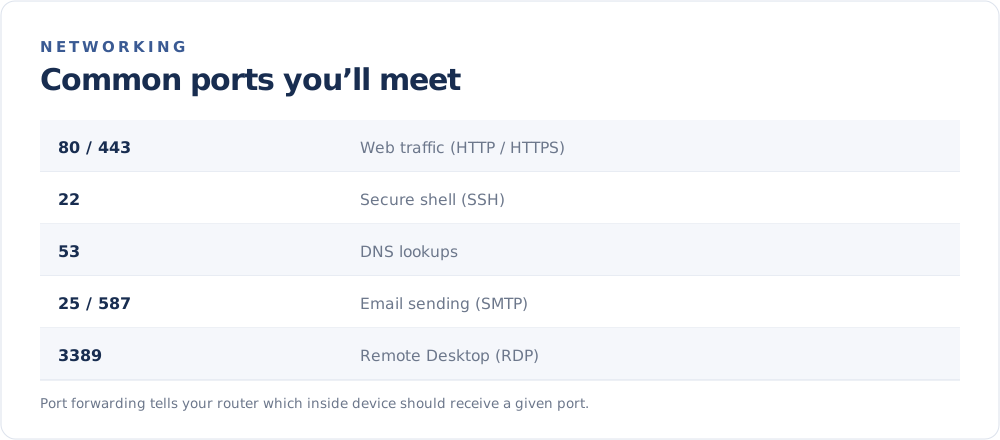
Ports you will run into
- 80 / 443 — web traffic (HTTP and secure HTTPS).
- 22 — SSH, for secure remote command-line access.
- 53 — DNS lookups.
- 25 / 587 — sending email (SMTP).
- 3389 — Remote Desktop (RDP).
When you visit a secure website, you are really connecting to its IP address on port 443 — the browser just hides that detail.
Why port forwarding is needed
At home, your router uses NAT to share one public IP among many devices. That works beautifully for traffic you start. But when a request arrives unsolicited from the internet — say, someone trying to reach a game server on your PC — the router has no idea which inside device it is for, so it drops it.
Port forwarding solves this. You create a rule that says: "Any traffic arriving on port X should go to this specific device's private address." The router then forwards matching traffic to the right place.
A typical port-forwarding setup
- Find the private IP of the device that will host the service — see How to Find Your IP Address. A static or reserved address is best so it does not change.
- Log in to your router's settings (usually at
192.168.0.1or192.168.1.1). - Open the Port Forwarding section.
- Add a rule: external port → the device's private IP and internal port.
- Save and test from outside your network.
Security considerations
Port forwarding opens a path from the internet to a device in your home, so use it carefully:
- Only forward the ports you genuinely need.
- Use strong passwords and keep the hosted service updated.
- Close rules you no longer use.
- Consider a VPN for remote access instead, which avoids exposing ports publicly.
The takeaway
Ports direct traffic to the right service on a device, and port forwarding lets chosen traffic reach a device behind your router. Together with NAT, they explain how one home connection can both protect your devices and still host a service when you want it to. See the public IP those rules would apply to on the FindMyIP home page.